
The digital certificate: what it is, how to get it and how to use it
Soraya Mohamedi Mohamed · Ubuntu Canarias · 10 min read
The guide in pictures
1 / 12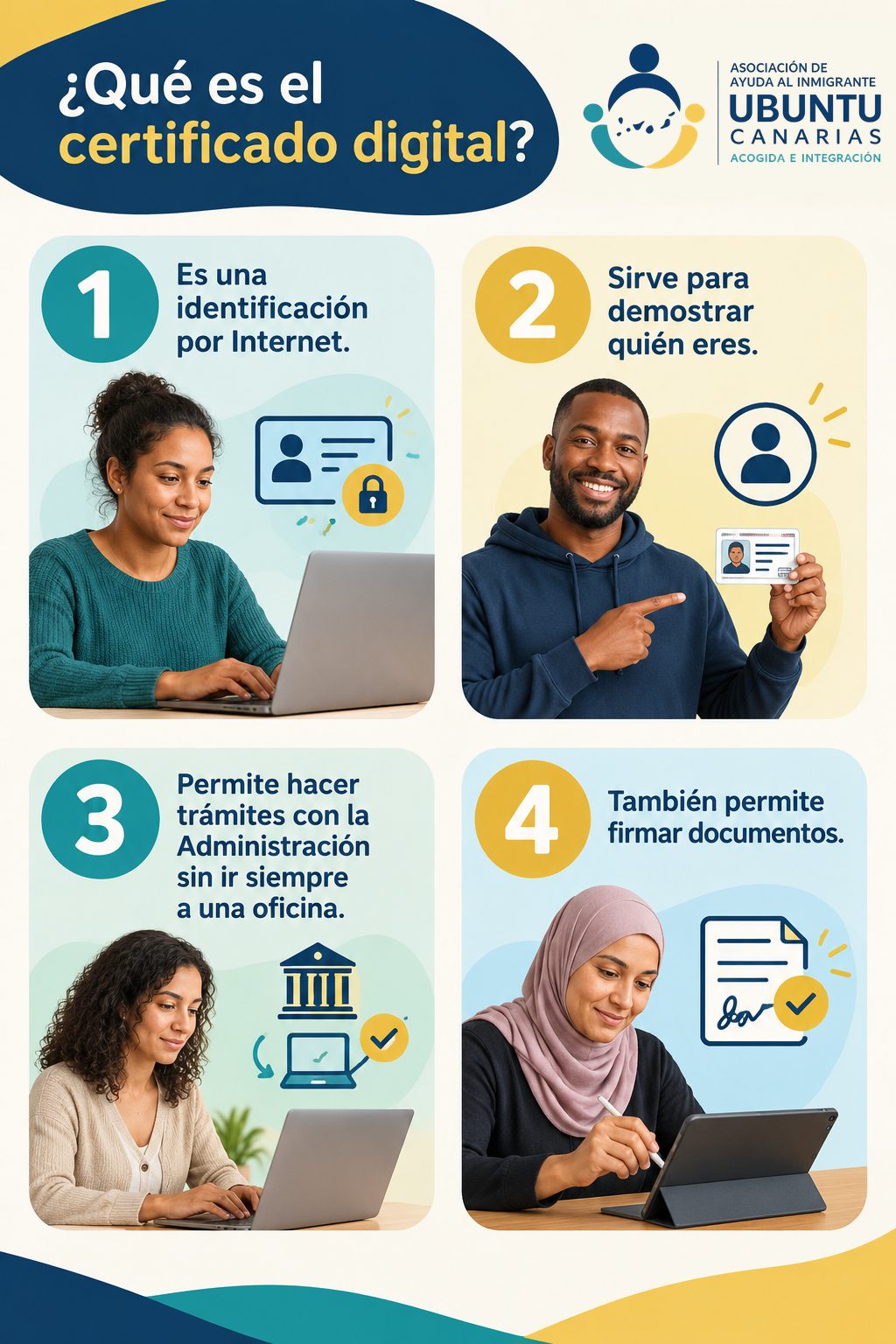
1 · What is the digital certificate?
- It is an ID for the internet.
- It proves who you are.
- It lets you do paperwork with the Administration without always going to an office.
- It also lets you sign documents.
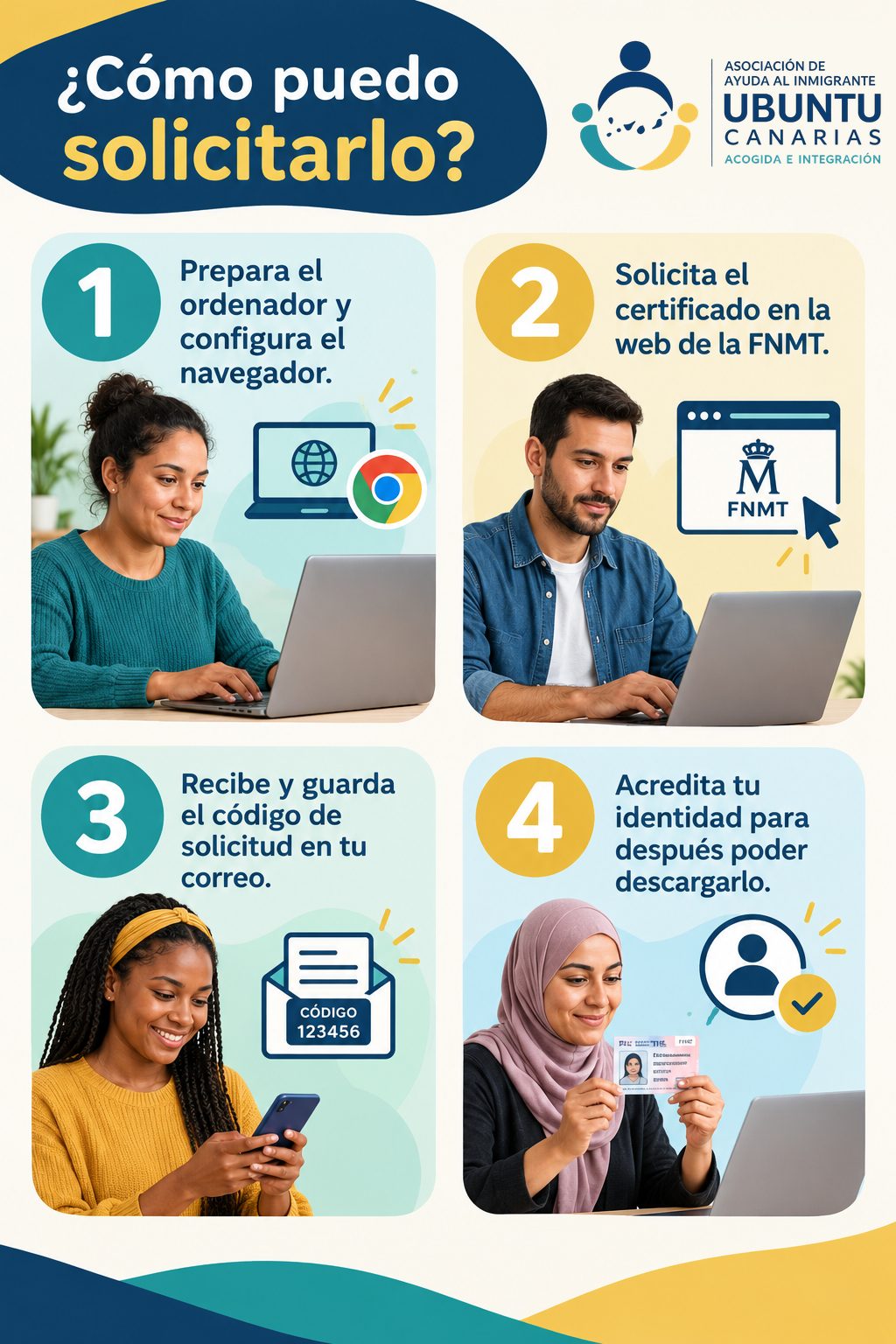
2 · How can I apply for it?
- Get your computer and web browser ready.
- Apply for the certificate on the FNMT website.
- Receive the request code in your email and keep it.
- Prove your identity so you can download it later.
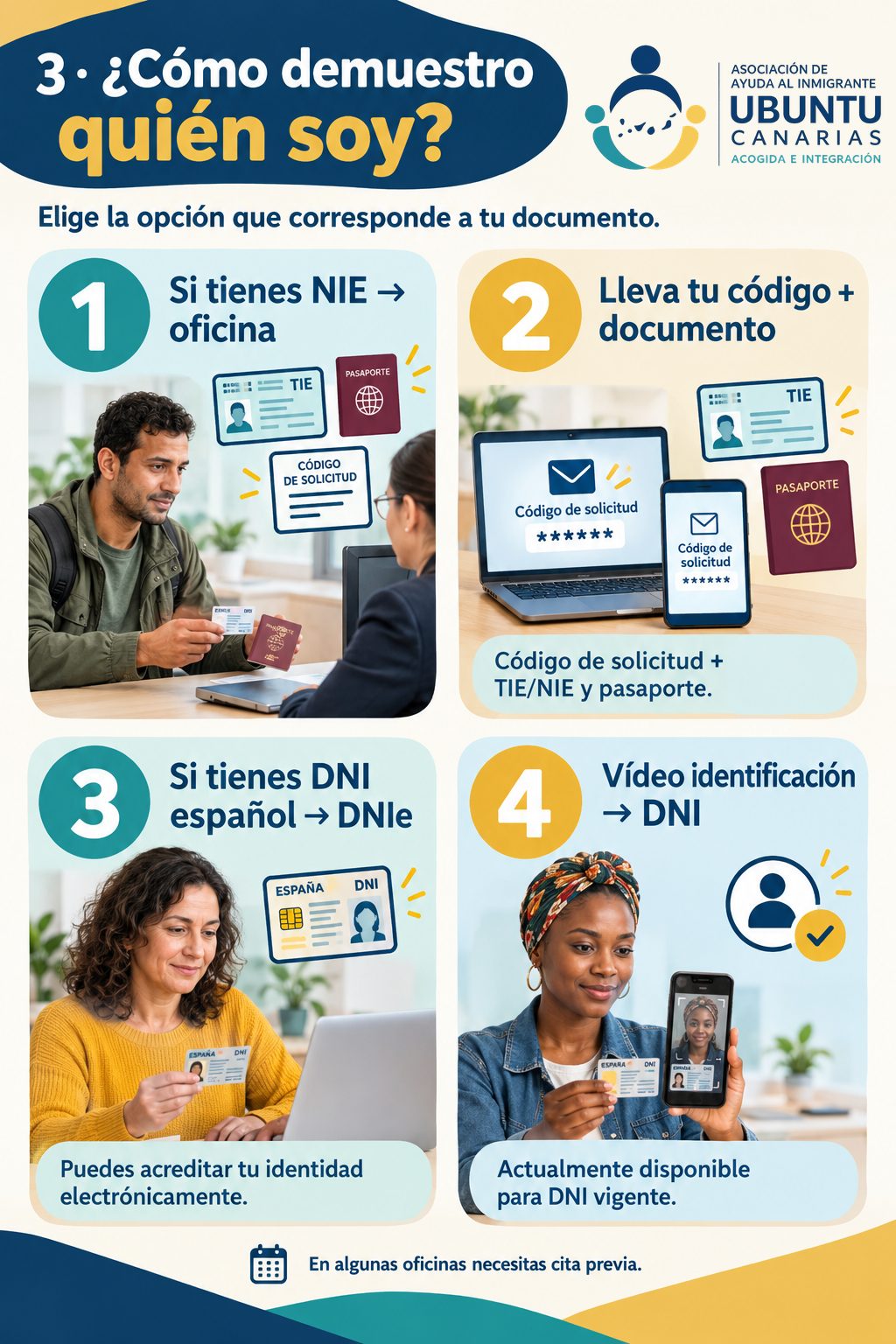
3 · How do I prove who I am?
Choose the option that matches your document.
- If you have an NIE → go to an office.
- Take your code + documents: request code + TIE/NIE and passport.
- If you have a Spanish DNI → you can use the electronic DNI.
- Video identification → only with a valid Spanish DNI.
Some offices need an appointment (cita previa).
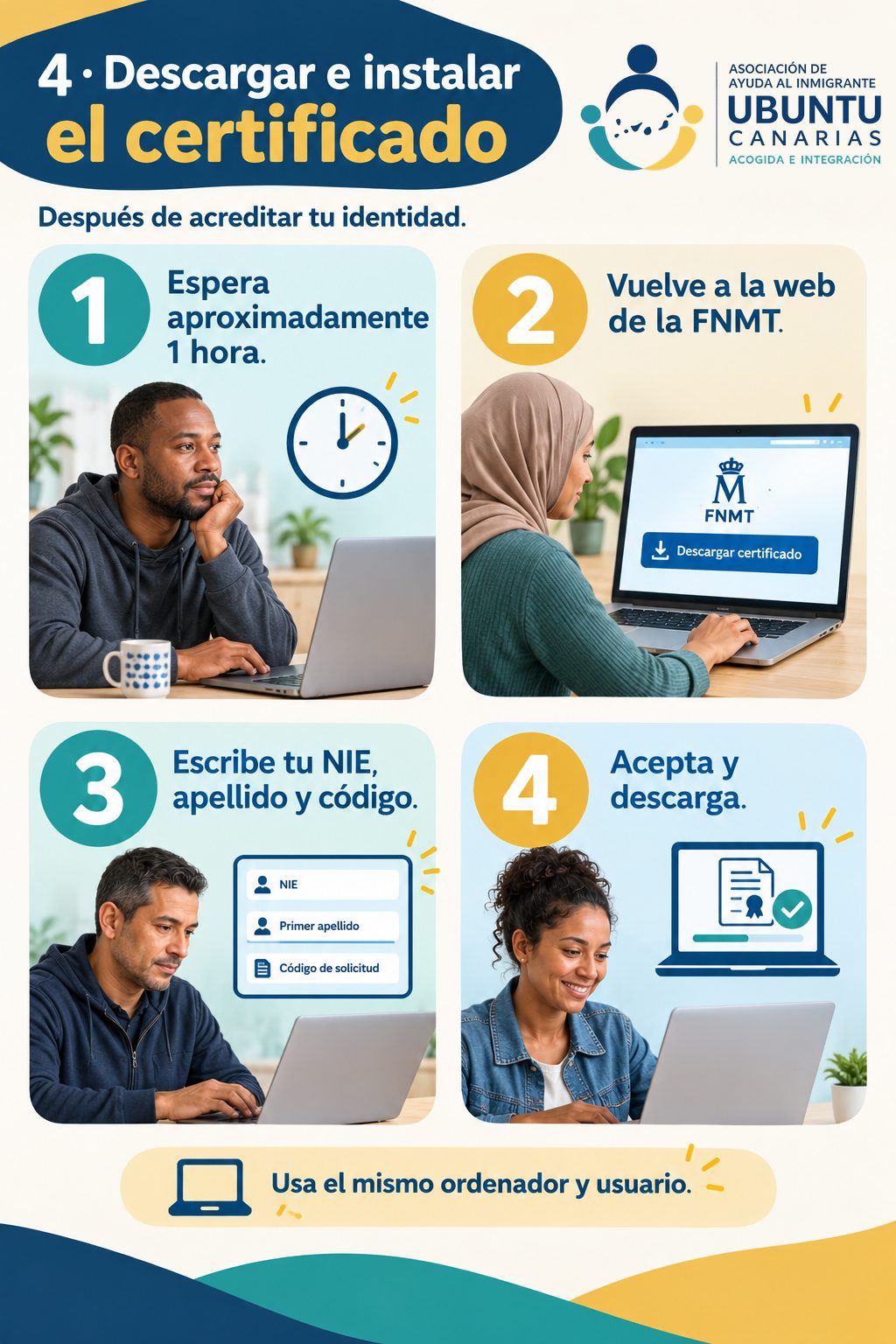
4 · Download and install the certificate
After proving your identity.
- Wait about 1 hour.
- Go back to the FNMT website.
- Type your NIE, your first surname and the code.
- Accept and download.
Use the same computer and the same user.
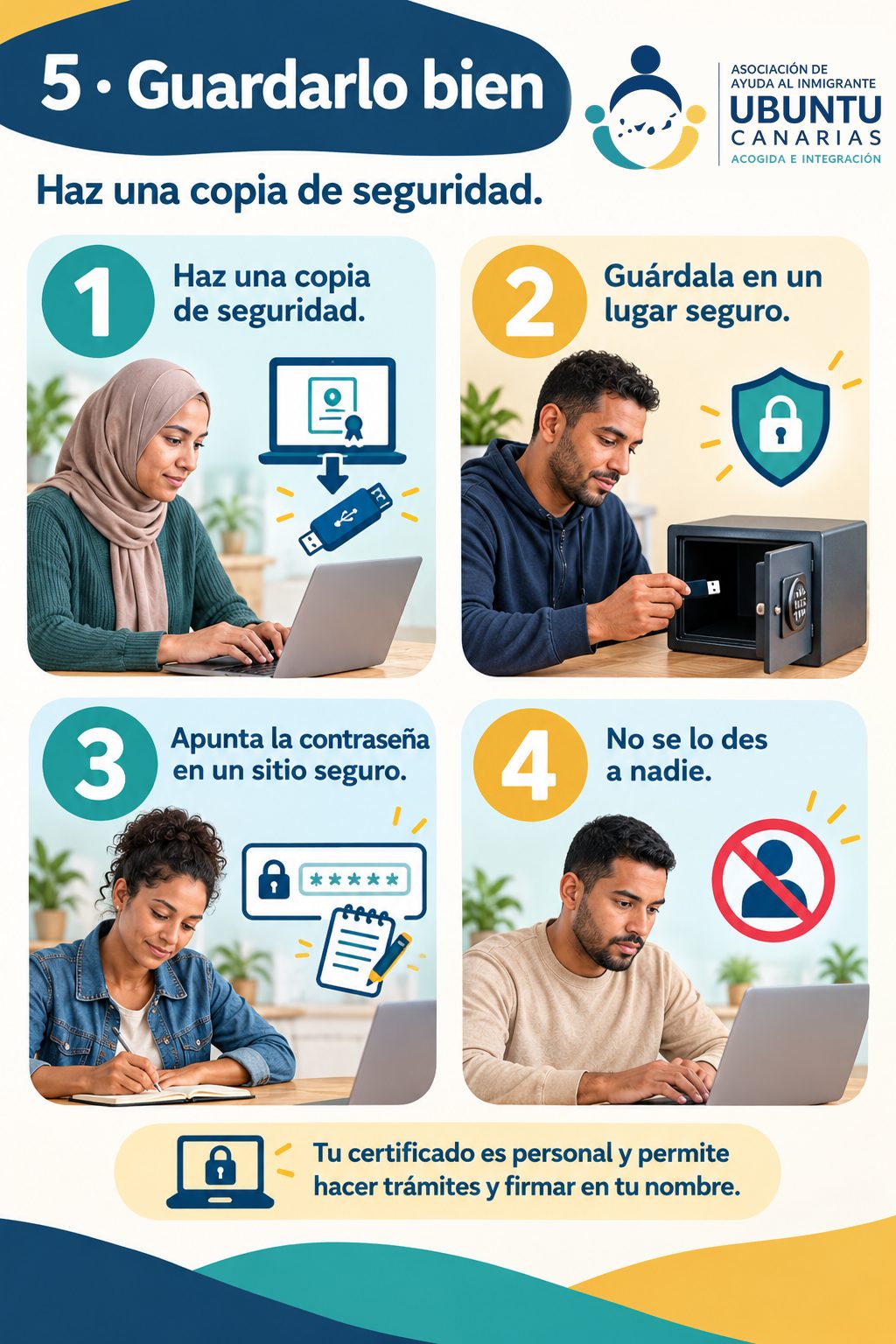
5 · Keep it safe
Make a backup copy.
- Make a backup copy.
- Keep it in a safe place.
- Write down the password in a safe place.
- Don't give it to anyone.
Your certificate is personal: it lets someone do paperwork and sign in your name.
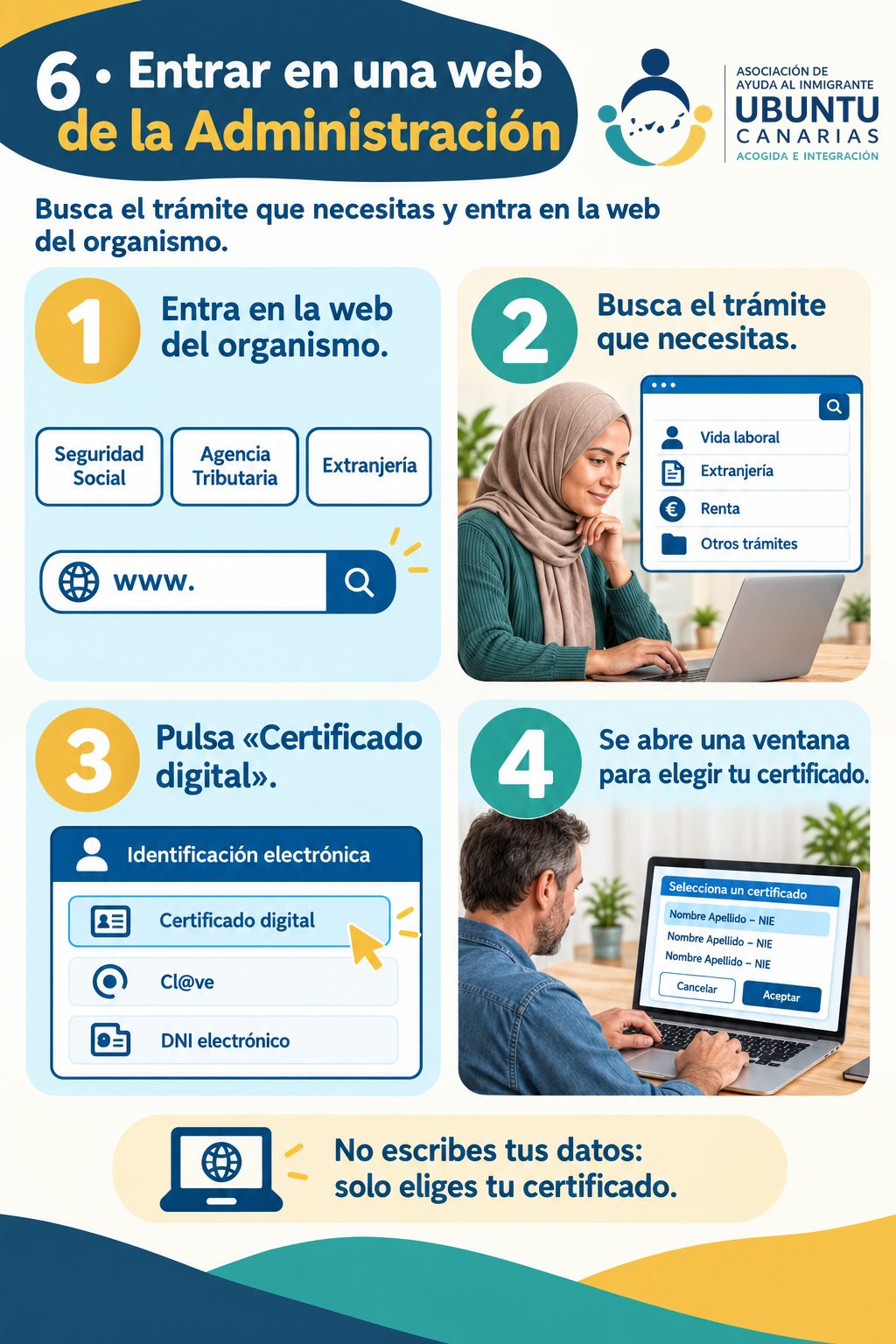
6 · Go into a government website
Find the procedure you need and go into the website of that office.
- Go into the website of the office.
- Find the procedure you need.
- Click «Certificado digital» (digital certificate).
- A window opens for you to choose your certificate.
You don't type your details: you only choose your certificate.
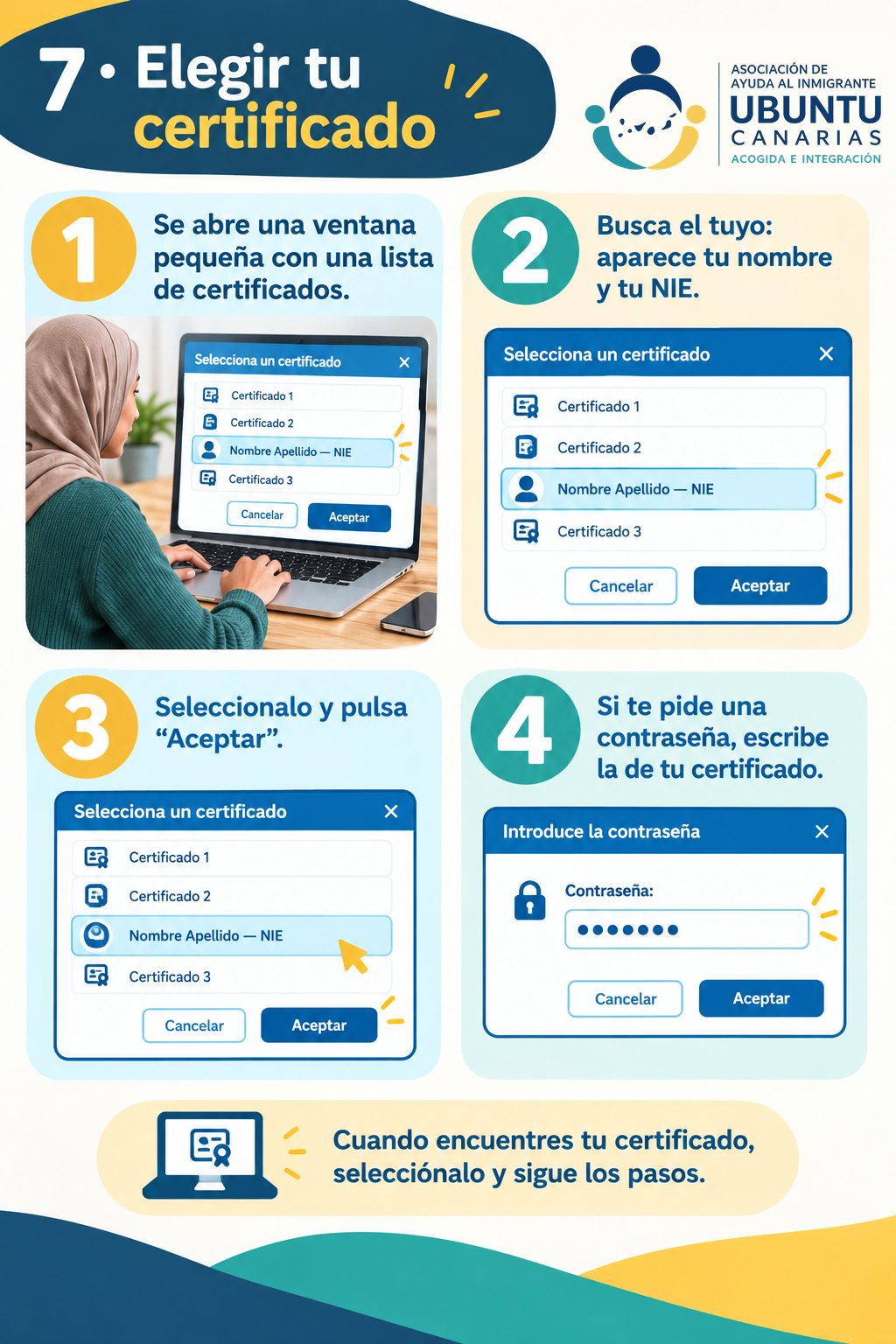
7 · Choose your certificate
- A small window opens with a list of certificates.
- Find yours: it shows your name and your NIE.
- Select it and click «Aceptar» (Accept).
- If it asks for a password, type your certificate's password.
When you find your certificate, select it and follow the steps.
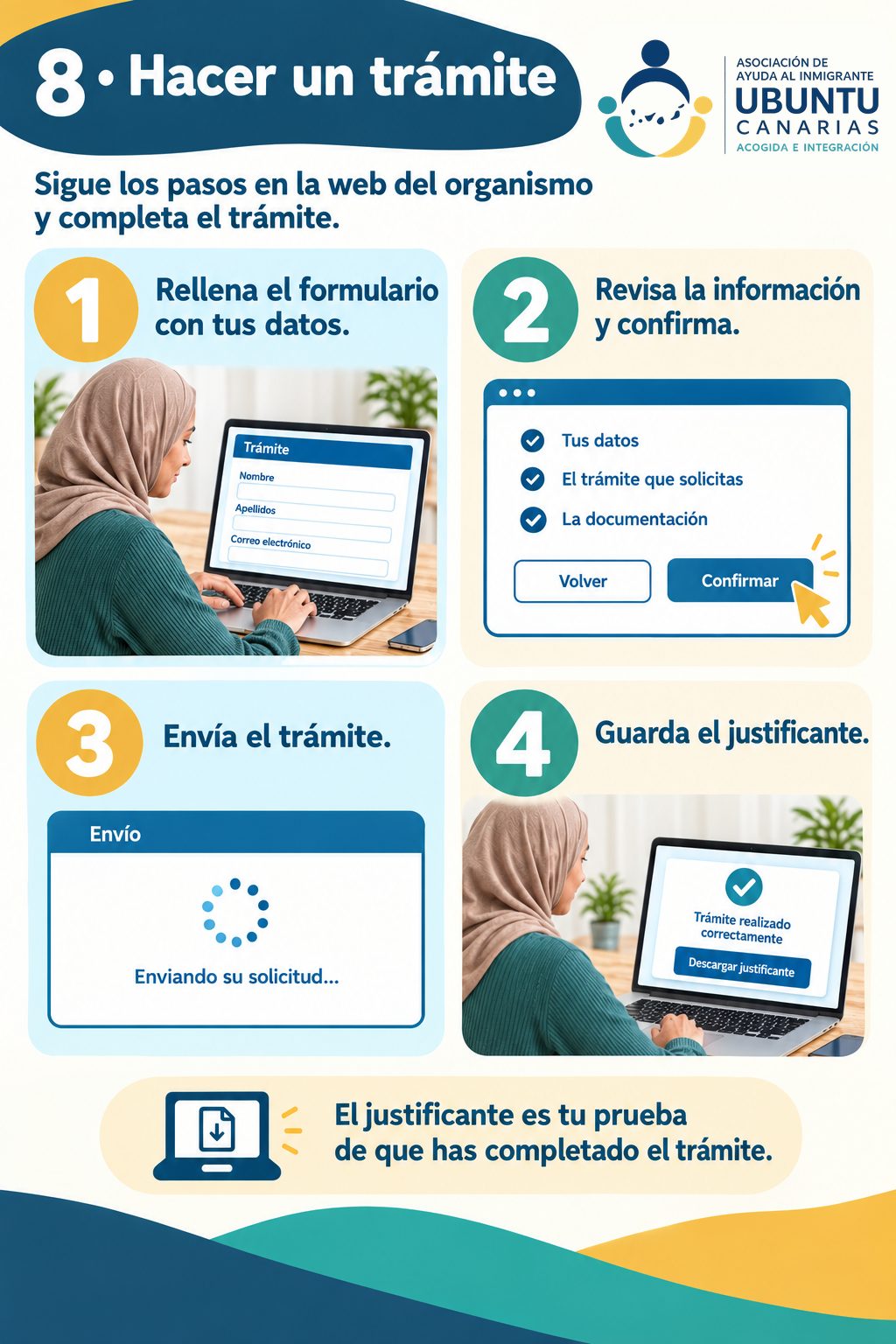
8 · Do a procedure
Follow the steps on the website and complete the procedure.
- Fill in the form with your details.
- Check the information and confirm.
- Send the procedure.
- Save the receipt (justificante).
The receipt is your proof that you completed the procedure.
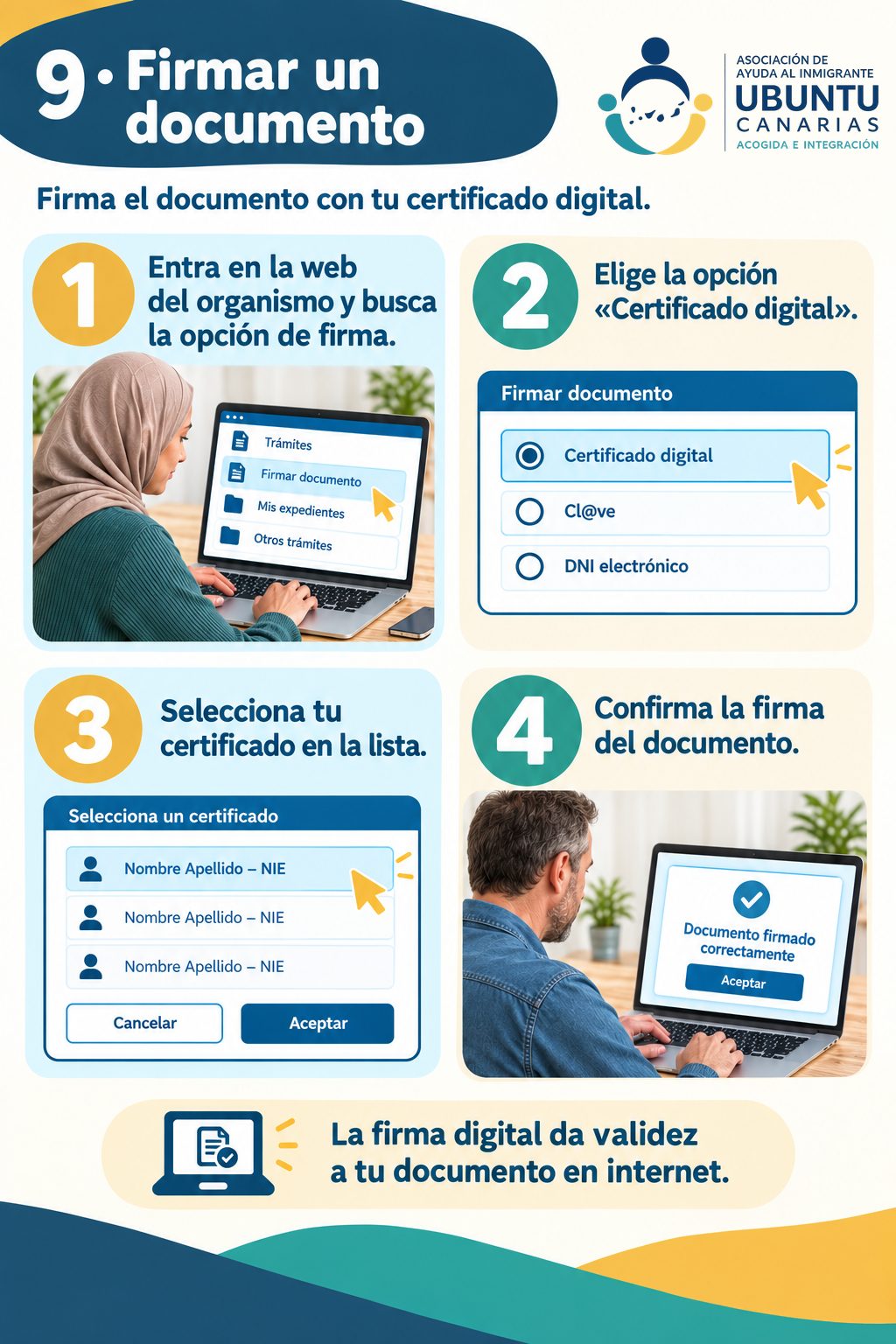
9 · Sign a document
Sign the document with your digital certificate.
- Go into the website and find the option to sign.
- Choose «Certificado digital» (digital certificate).
- Select your certificate from the list.
- Confirm the signature of the document.
A digital signature makes your document valid on the internet.
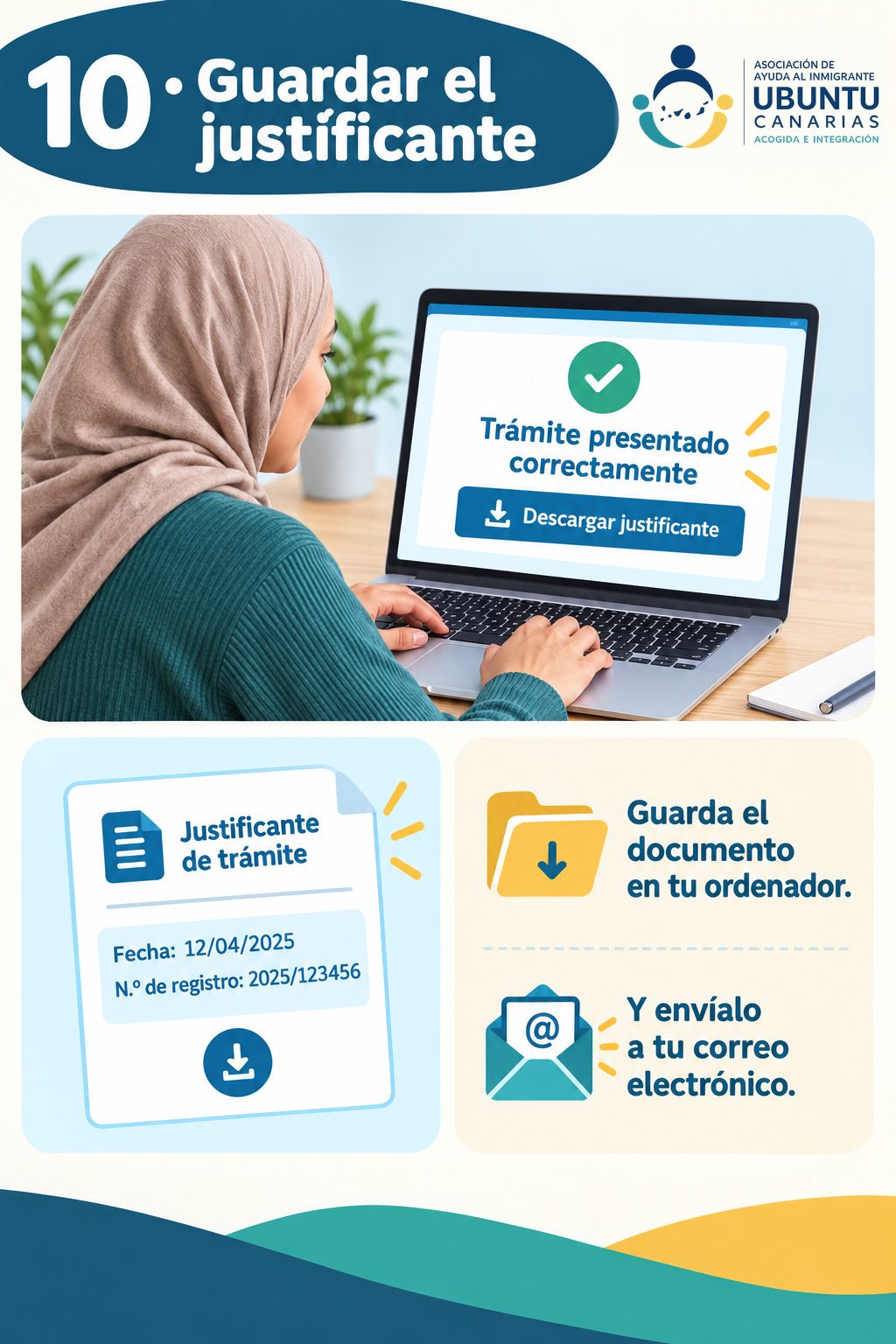
10 · Keep the receipt
- Check that it says «Trámite presentado correctamente» (submitted correctly).
- Click «Descargar justificante» (download receipt). It shows the date and a registration number.
- Save the document on your computer.
- And send it to your email.
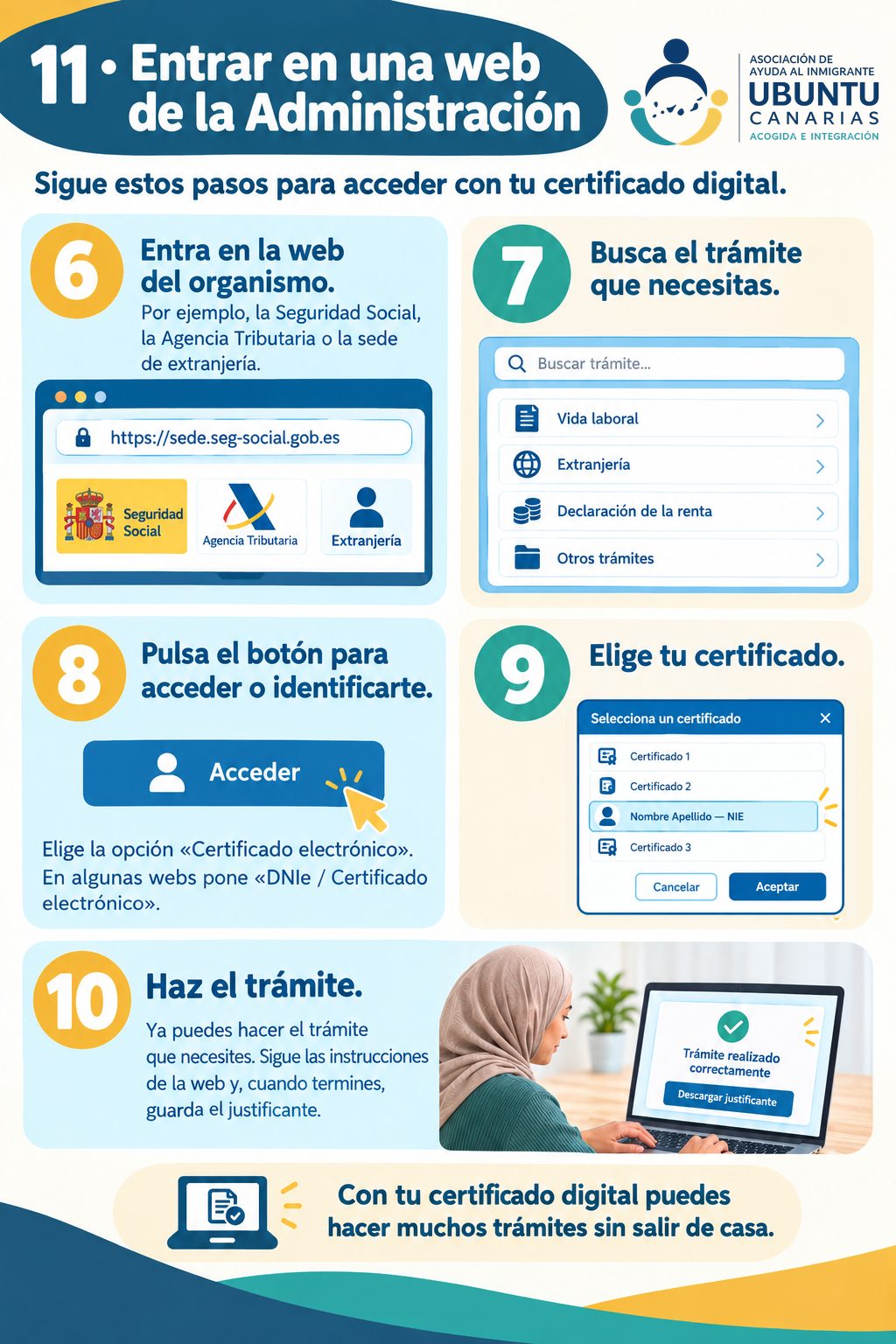
11 · Go into a government website
Follow these steps to log in with your digital certificate.
- Go into the website of the office. For example, the Seguridad Social, the Agencia Tributaria or the immigration office (extranjería).
- Find the procedure you need.
- Click the button to log in. Choose «Certificado electrónico» (electronic certificate). On some websites it says «DNIe / Certificado electrónico».
- Choose your certificate.
- Do the procedure. Follow the instructions on the website and, when you finish, save the receipt (justificante).
With your digital certificate you can do many procedures without leaving home.
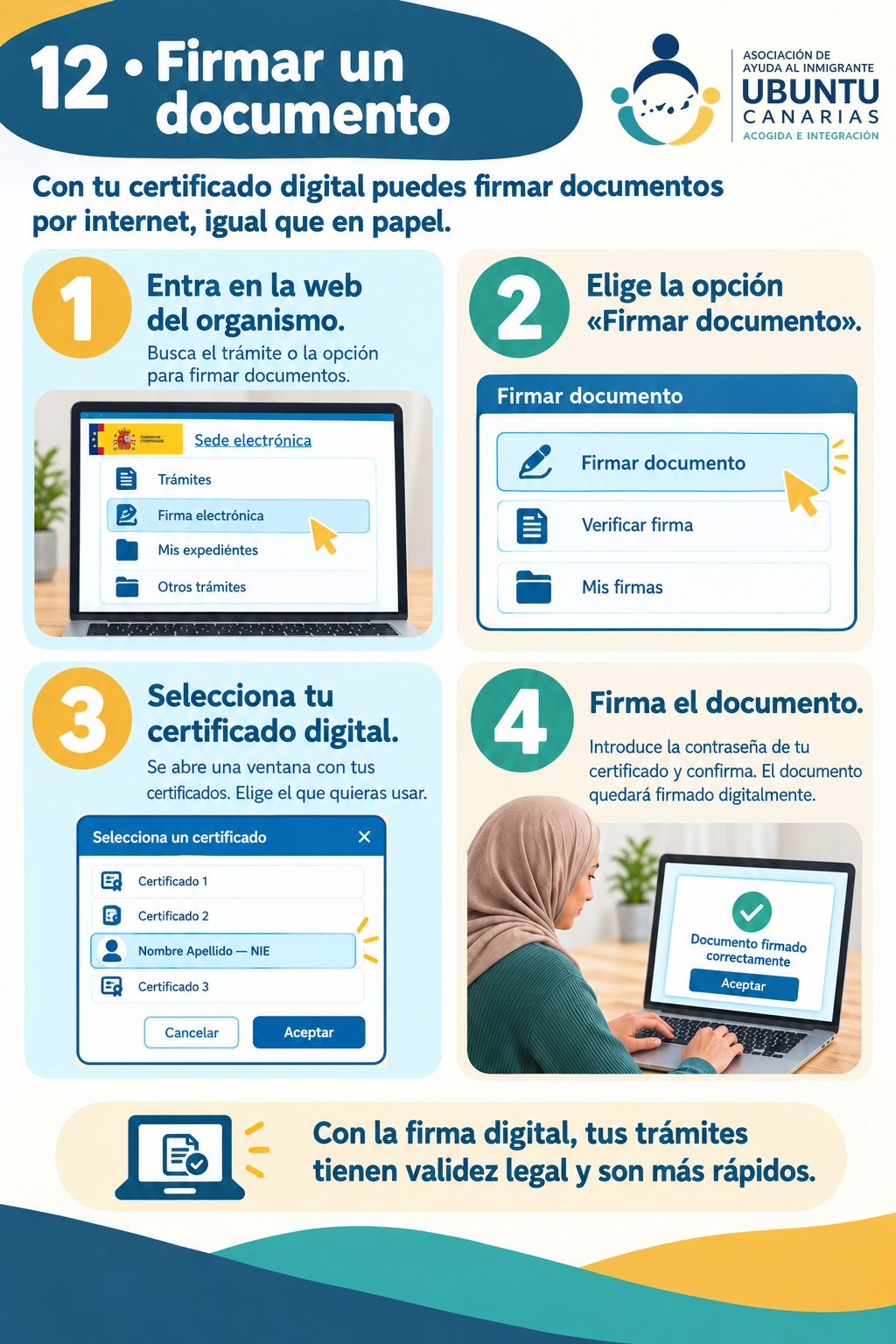
12 · Sign a document
With your digital certificate you can sign documents on the internet, just like on paper.
- Go into the website of the office. Find the procedure or the option to sign documents.
- Choose the option «Firmar documento» (sign document).
- Select your digital certificate. A window opens with your certificates.
- Sign the document. Type your certificate's password and confirm.
With a digital signature, your procedures are legally valid and faster.
Swipe with your finger to see the next one. Tap a picture to see it bigger. The pictures are in Spanish: the text under each one tells you what it says.
More and more paperwork is done online: asking for your work history report (vida laboral), handing in immigration papers, checking how your case is going or doing your income tax return. For many of these, you have to prove who you are on the internet. That is what the digital certificate is for.
In this guide I explain it step by step, with pictures. You can follow it slowly, even if you do not use a computer much.
Before you start, have these ready
- Your residence card (TIE) (Tarjeta de Identidad de Extranjero, the foreigner’s identity card) or the paper that shows your NIE (Número de Identidad de Extranjero, your foreigner’s identity number).
- Your passport.
- An email address that you check often.
- A computer, ideally your own. You do the whole process on the same computer.
The certificate is free.
1 · What is the digital certificate?
It is like your identity document, but for the internet. It is a file saved on your computer. It tells the website: “this person is who they say they are”.
- You use it to log in to government websites with your name.
- You use it to do paperwork without going to an office.
- You use it to sign documents online.
The certificate for individuals is given by a public body: the Fábrica Nacional de Moneda y Timbre (FNMT) (the public body that issues the certificate).
2 · How do I ask for it?
There are four steps:
- Install a program on your computer. It is called Configurador FNMT (the FNMT setup program). You can download it for free from the FNMT website.
- Ask for the certificate on the FNMT website. You write your NIE, your first surname and your email. You get a code by email. Keep it.
- Prove who you are. I explain this in the next part. You have to go in person to an office, for example the Agencia Tributaria (tax office).
- Download the certificate on the same computer.
Very important: do all the steps on the same computer and with the same user account. If you change computer halfway, you will not be able to download it.
3 · Prove who you are
Someone has to check that it is really you. If you have an NIE, you must go in person to an office, for example the Agencia Tributaria (the tax office, also called Hacienda) or the Seguridad Social, to confirm your identity. Without this step you cannot download the certificate.
In an office
- Find an office with the FNMT office finder. There are offices of the Agencia Tributaria (the tax office), of the Seguridad Social (Social Security) and of other public bodies.
- In many of them you have to book an appointment first.
- Bring your TIE (or the document with your NIE), your passport and the code you got by email.
- It is free.
Other ways, only with a Spanish DNI
People with a Spanish electronic DNI (DNIe, the Spanish national ID card with a chip) can also do it by video call (it costs €2.99 plus taxes), with the FNMT app or with the chip in the DNI. If you see these options online, remember: according to the FNMT website, right now they do not work with an NIE.
4 · Download and install it
- Wait about 1 hour after you prove who you are.
- Go back to the FNMT website, on the same computer, and click «Descargar certificado» (Download certificate).
- Write your NIE, your first surname and the code from the email.
- Accept. The certificate is installed on your computer.
5 · Keep it safe
If your computer breaks or you change it, you lose the certificate. That is why the FNMT recommends making a backup copy.
- Make a backup copy. It is a file with your certificate, protected with a password that you choose.
- Keep that file in a safe place, for example on a USB stick that you keep at home.
- Write down the password in a safe place. Without it, the copy does not work.
- Do not give it to anyone. With your certificate, another person can do paperwork and sign as if they were you.
If someone helps you with a procedure, they can do it next to you, on your computer. You do not need to give them your certificate.
6 · Go into a government website
- Go to the website of the public body: for example, the Seguridad Social, the Agencia Tributaria or the immigration office website (sede de extranjería).
- Look for the procedure you need.
- Choose the option «Certificado digital» (Digital certificate) or «Certificado electrónico» (Electronic certificate). On some websites it says «DNIe / Certificado electrónico» (DNIe / Electronic certificate).
- A window opens so you can choose your certificate.
When you log in with the certificate, you do not have to write your details: you just choose your certificate.
7 · Choose your certificate
- A small window opens with a list of certificates.
- Look for yours: it shows your name and your NIE.
- Select it and click «Aceptar» (Accept).
- If it asks for a password, write your certificate password.
8 · Do a procedure
- Fill in the form with your details and attach the documents they ask for.
- Check all the information and click «Confirmar» (Confirm).
- Send the procedure and wait until it finishes.
- Save the receipt. It is your proof that you did the procedure.
Tip: before you start, have your documents scanned or photographed on your computer, ideally as PDF. That way you will not have to go and look for them in the middle of the procedure.
9 · Sign a document
- On the website of the public body, look for the option to sign.
- Choose «Certificado digital» (Digital certificate).
- Select your certificate in the list and click «Aceptar» (Accept).
- Confirm and check that a message appears saying the document has been signed correctly.
Many websites use a free program to sign, called AutoFirma (the government’s free signing program). If the website asks for it, install it from the official government page (firmaelectronica.gob.es).
10 · After you hand it in: save the receipt
This part is very important.
- Check that the website says your procedure has been submitted.
- Download the receipt. It is a document with the date and a registration number.
- Save it on your computer and, if you can, also email it to yourself.
- Do not lose it. It is the proof that you handed it in, and when.
11 · Digital certificate, Cl@ve and DNI electrónico: they are not the same
They are three different ways to prove who you are on the internet.
| System | What it is |
|---|---|
| Digital certificate | A file on your computer. You use it to log in and to sign. Anyone with an NIE can have one. |
| Cl@ve | A system that uses your mobile phone: you get a code or you confirm in an app. You register once, and you can do it with an NIE too. |
| Electronic DNI | The Spanish ID card with a chip. Only people with Spanish nationality have it. |
You do not need to have all of them. But some procedures only accept one of them, and to sign documents you usually need the certificate.
12 · Common problems
- “I can’t find the certificate.” Are you on the same computer and the same browser where you installed it? If not, install your backup copy.
- “It asks me for a password.” It is the one you chose when you made the backup copy.
- “It has expired.” The certificate has an expiry date, usually after 4 years. You can renew it online in the 60 days before it expires, if you meet the conditions. If it has already expired, you have to ask for a new one.
- “I’m on another computer.” You can install your backup copy. If the computer is not yours, for example in a phone and internet shop (locutorio), delete it when you finish.
- “I can’t sign.” Check that you have AutoFirma installed and up to date.
This guide is for information only. It is based on the information published by the FNMT and the government in October 2026. The steps and the screens may change.
Official sources
- FNMT: getting the certificate by proving your identity in person (in Spanish)
- FNMT: documents to bring to the office (in Spanish)
- FNMT: certificate with video identification (in Spanish)
- Electronic Signature Portal: download AutoFirma (in Spanish)
- FNMT: renew the certificate (in Spanish)
- Spanish central government: register in Cl@ve (easy read) (in Spanish)
Stuck on a step? Write to us and we will guide you.
Request guidance on paperwork